
Test accounts
Test accounts have features similar to those of a real Mercado Pago account and allow you to represent buyers, sellers, or integrators in specific scenarios without using real data.
Create test accounts only when the scenario you need to validate requires representing one of these participants:
- Seller: account that represents the payment recipient.
- Buyer: account that represents the person making the purchase.
- Integrator: account used in marketplace model integrations.
You can create up to 15 test accounts simultaneously, and for now, it is not possible to delete them.
If the scenario you need to validate requires a test account, select Test accounts from the Integrations side menu. You can also access it from Home (Resources > Test accounts) or from the Credentials section (Test account > Manage test accounts).
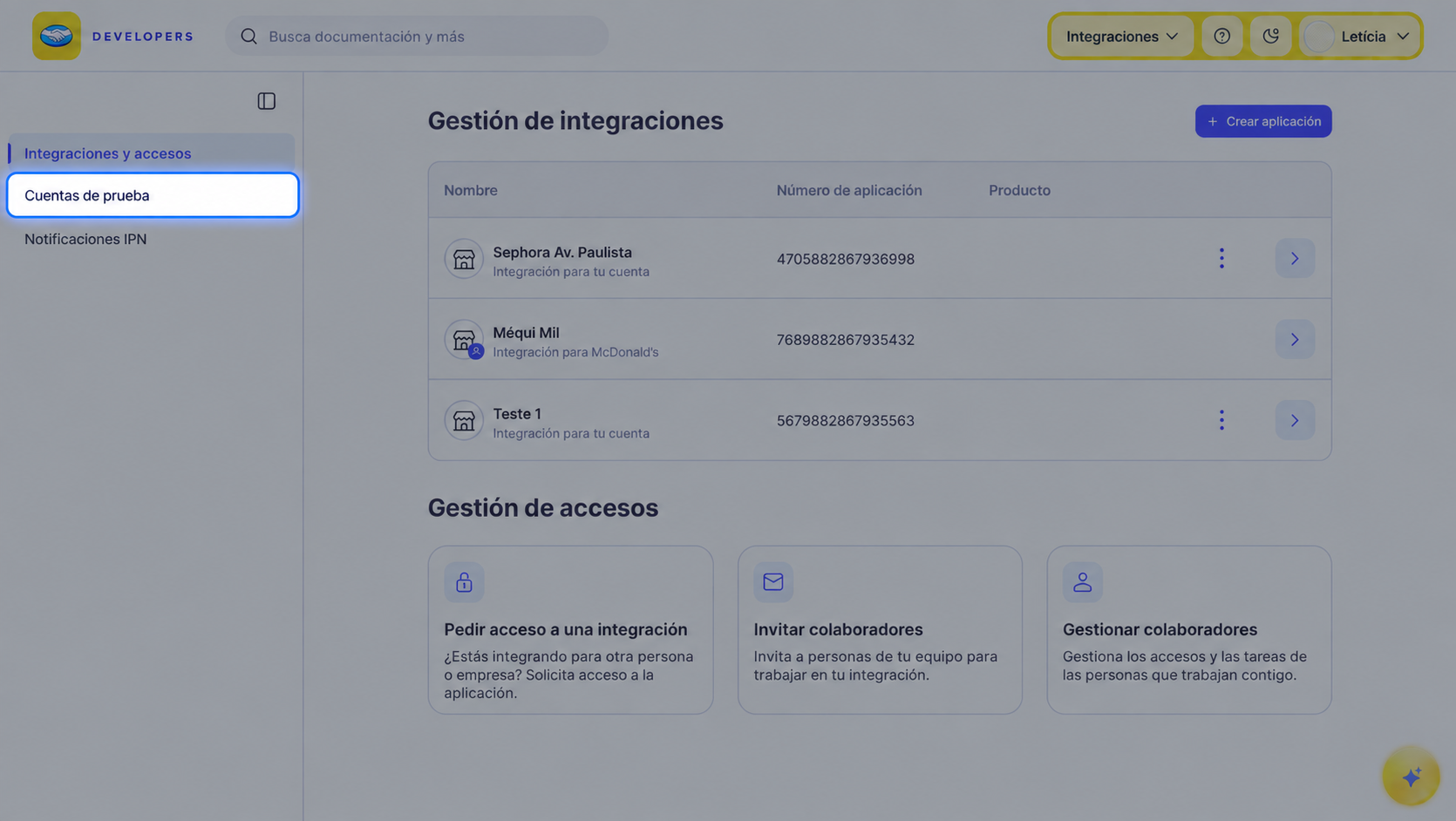
To create an account, follow the steps below.
-
In the "Create new account" screen, select the operating country for the account. This information cannot be edited later, and furthermore, the Buyer and Seller users need to be from the same country.
-
Then, enter a description to identify the account. For example: "Seller - Store 1".
-
Next, select the type of account you want to create. This can be Seller, Buyer or Integrator.
-
If the test account requires it, enter a fictional money value that will serve as a reference for testing your applications. This value will appear as the balance in the Mercado Pago account of the test user and can be used for payment simulation, just like with the test cards.
-
Authorize the use of your personal data in accordance with the Privacy Statement and ensure that your account uses Mercado Pago's tools in accordance with the Terms and Conditions by checking the checkbox.
-
Click on Create test account.
Done! The test account has been created and will be displayed in the table with the information below.
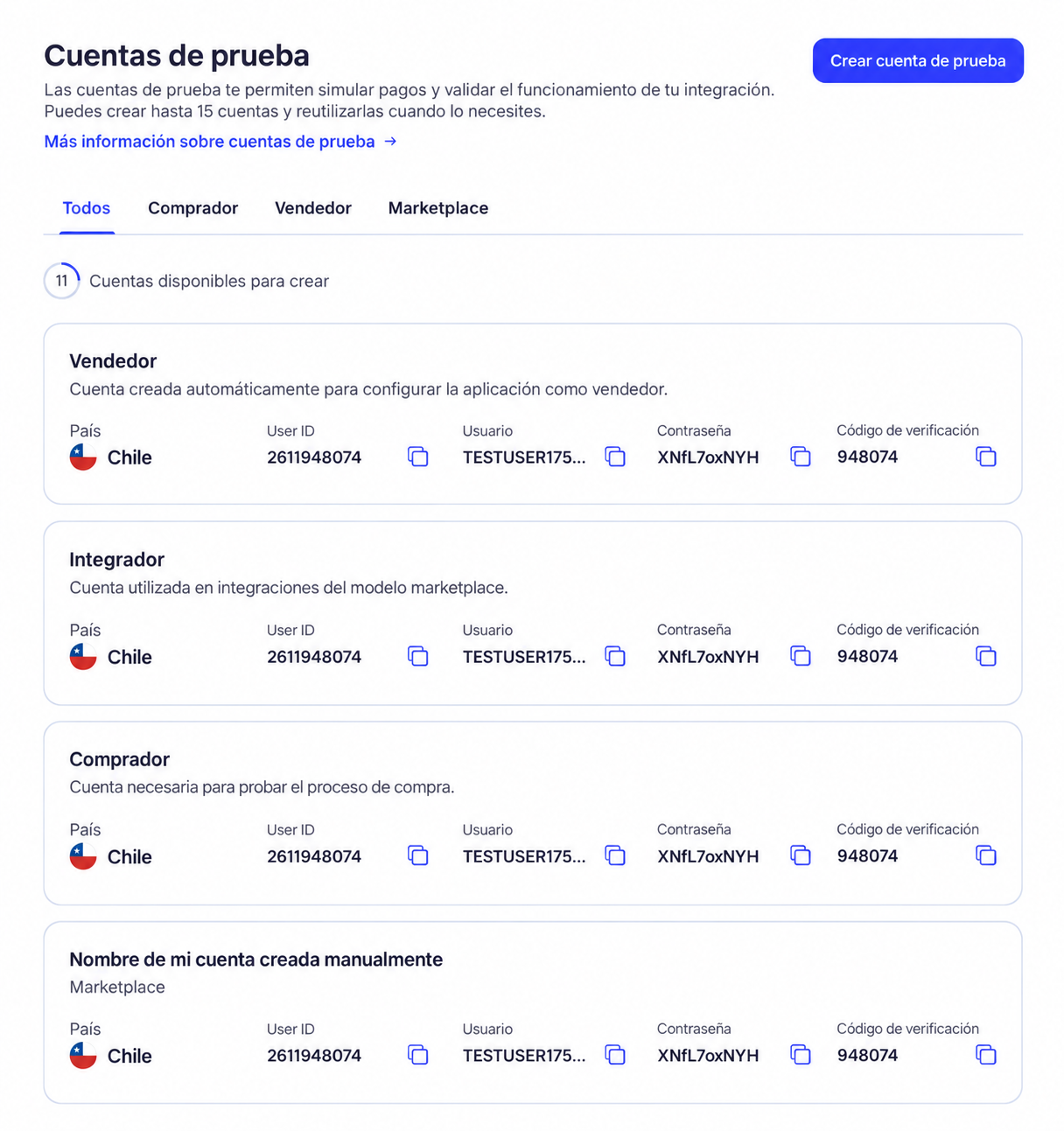
- Operating country: country for which the account was created.
- User ID: automatically generated numeric identifier.
- User: automatically generated username used to log in with the test account.
- Password: automatically generated password used to access the account.
- Verification code: 6-digit code used if verification is requested when logging in.
Validate login with test accounts
If verification is requested when logging in with a test account, enter the 6-digit code found in Integrations > Your application > Credentials, within the test environment, in the Test account section.
Please note that when you log in with a test account, you will not have access to certain sections within the Developer Dashboard, such as Test Credentials or Integration Quality. These are sections that are not only not necessary for this type of accounts, but can also interfere with their proper and desired use.